Por enquanto, este guia está só em inglês.
The backoffice is the website your staff work in. It runs in any modern browser, on a desk or on a phone, in light or dark following the device's setting, and in Portuguese or English. Every page keeps itself up to date every few seconds, so there is nothing to reload.
Signing in
Open the backoffice's address and sign in with your email and password, or with Log in with … when your city uses single sign-on. The PT and EN buttons under the form choose the language before you sign in.
A link someone sent you opens after you sign in. Signing in remembers you for a year on that browser; Log out, beside your name at the foot of the menu, ends it.
The tour
The first time someone signs in, a short tour shows them round: five to seven steps for their role, each lighting up one part of the page with a line on what it is for. It ends on their account page, at the language switch and this guide. Next and Back (or the arrow keys) move through it, and Skip tour or Esc ends it at once.
Once finished or skipped, it doesn't come back, on that device or any other. Take the tour again on the account page starts it over.
Your home page
Signing in lands on Home, which shows what you should do now. Each role has its own:
- Support: a search box ready to type into, then calls for help, open issues, documents to check, privacy requests and messages that failed to send, and the riders you opened last.
- The control room: New order, New message, Closures and the City, then calls for help, open issues, overdue orders, orders nobody has, open alerts, stations to rebalance, closed and silent stations and missing bikes, each with the list behind it.
- Marketing: New campaign, New voucher and the reports, with rides and sales over the last seven days against the seven before, and the campaigns.
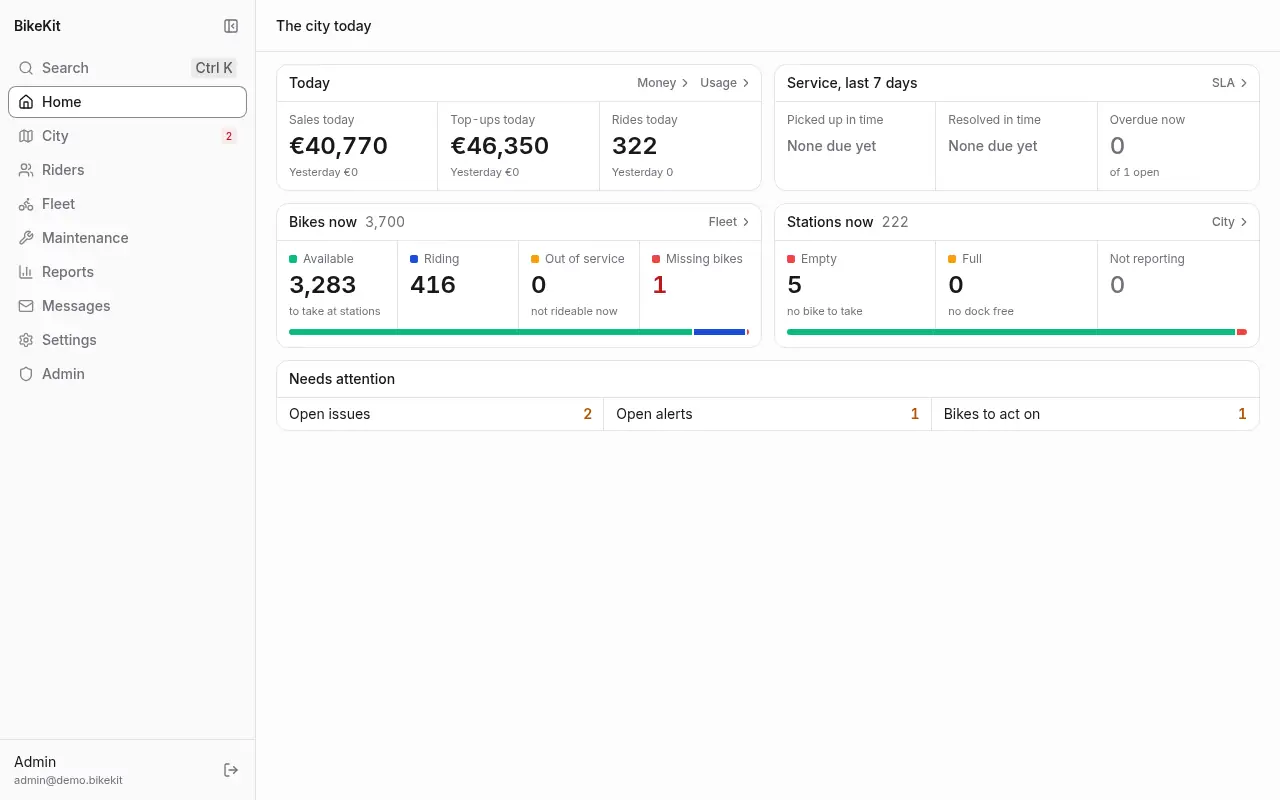
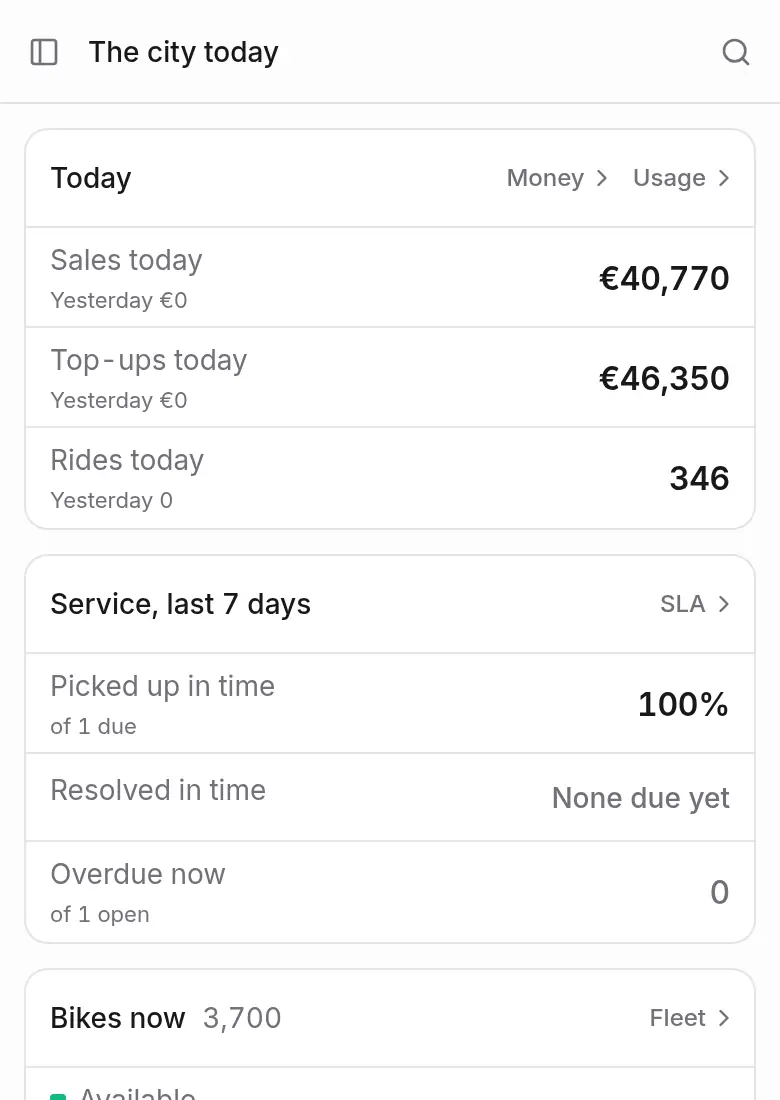
- Managers and admins: the city at a glance. Today (sales, wallet top-ups and rides, beside yesterday), Service over the last seven days (orders picked up and resolved in time, and overdue now), Bikes now (available, riding, out of service, missing) and Stations now (empty, full, not reporting), then what needs attention.
- Workers: their own orders and shift, made for a phone. See Maintenance.
Every figure is a link to the list behind it. A figure is coloured only when it needs someone.
Finding your way
The menu on the left lists Home, City and the sections your role can open: Riders, Fleet, Maintenance, Reports, Messages, Settings and Admin. Each section has tabs along the top of the page. The number beside Home or City counts the open issues.
On a narrow screen the menu folds into an icon rail; on a phone it opens from the button at the top left. The button at the top of the menu folds it on a desktop too.
Search (Ctrl K, or ⌘K on a Mac, or the search button) finds pages, actions and records: riders by name, email, phone or tax number, rides by ID, bikes by label and stations by name. Its actions, such as New order or New voucher, open the page with the form ready.
A few habits hold everywhere:
- Click anywhere on a table row to open it.
- Filters and sort orders are kept in the page's address, so a filtered list can be bookmarked or sent to a colleague.
- A form says what will happen on its button: Close station, Send refund. Anything that can't be undone asks first, and asks for a reason when the reason matters later.
- Times are your city's (the server's
TIME_ZONE), whatever the time zone of your computer or phone.
Your account and language
Your name at the foot of the menu opens Your account: your name, email and role, and the language you read the backoffice in. Choose Português or English; the choice follows you to any device you sign in on.
Change password asks for your current password, then the new one twice; it needs at least 8 characters. You stay signed in where you changed it, and every other device you were signed in on is signed out. If you sign in through your organisation's accounts (single sign-on), your password is kept there, and the page links to the provider's own account page instead (OIDC_ACCOUNT_URL, see Settings).
The About group there links to this guide and the accessibility statement, and has Take the tour again.
On a phone
Every page works on a phone, down to a 320-pixel-wide screen. Tables scroll sideways inside their card rather than squeezing and home pages turn into lists. Technicians' pages are made for a phone first.
Accessibility
The backoffice meets EN 301 549 (WCAG 2.1 AA): it can be used with a keyboard alone and with a screen reader, in both themes, and every chart and map has its figures as text somewhere. The accessibility statement, open to anyone at /accessibility, lists what isn't there yet.