Por enquanto, este guia está só em inglês.
This is the control room's daily work: watching the city, keeping stations stocked, and closing what must close. Operators, managers and admins do all of it; Support and Marketing can read the City map.
The City map
City in the menu opens a live map of every station, with a rail beside it listing only what needs action: open issues first, oldest first, then stations that are empty or full, longest first.
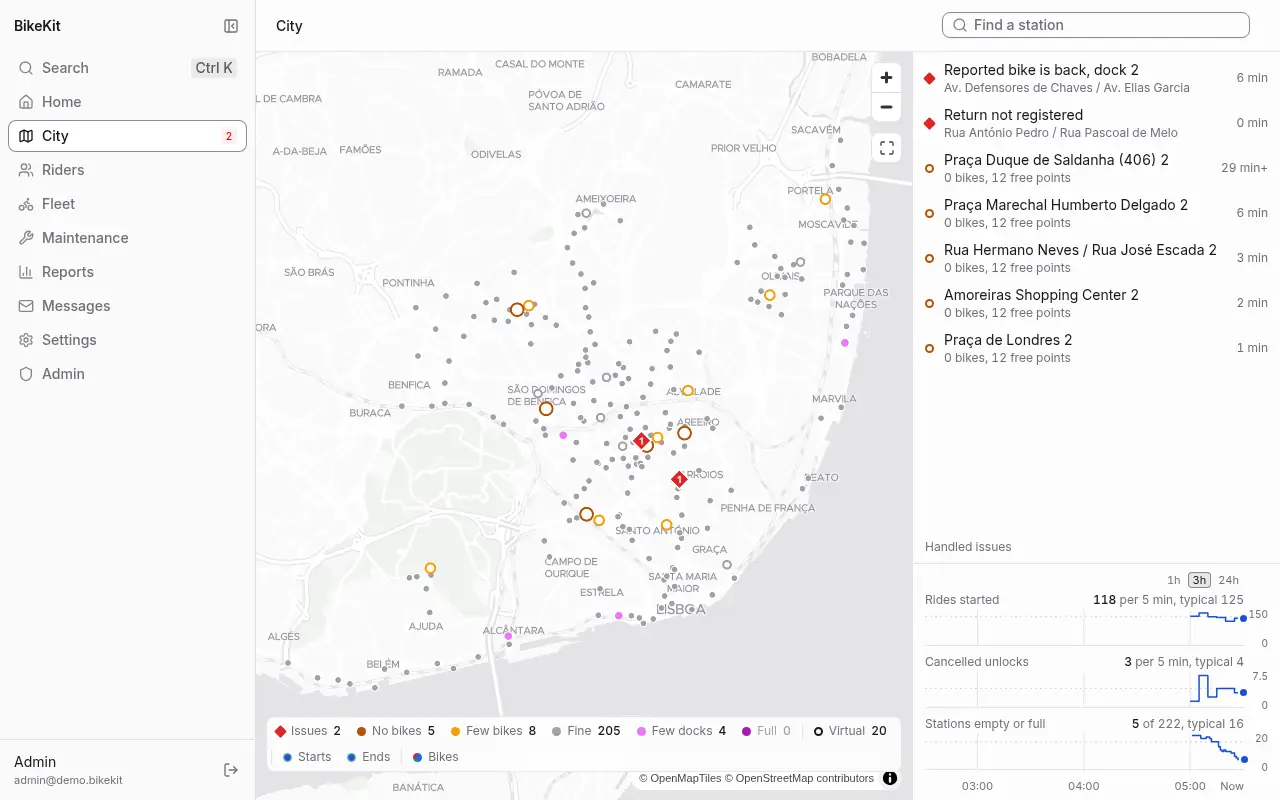
Reading the map. Each station is a circle coloured by its level, explained in the legend at the bottom: No bikes, Few bikes, Fine, Few docks and Full. Virtual stations are hollow rings. A red diamond is an issue on a station, or a rider asking for help where they are. Zoom in and each station shows how many bikes it has; zoom further, past street level, and it opens into a ring of dots, one per dock: solid for a bike ready to ride, amber for a bike that isn't, hollow for an empty dock, and grey with a cross for a dock out of service. Hover a dot to name it, click it to see its bike, battery and state.
Filtering. Click a level in the legend to dim the other stations and list the matching ones in the rail. Virtual shows only virtual stations. Bikes adds every bike that is out of a dock, where it last reported: on a ride, with a worker or missing; click one to open its ride or the bike. Starts and Ends turn on a heat map of where rides started or ended over the chosen time range. Find a station, at the top, flies to a station by name.
The charts. Under the rail, the last 1, 3 or 24 hours of rides started, cancelled unlocks and stations empty or full, with a dashed line at the usual level. With a station open, how many bikes it held joins them. A gap in a line is time the server has no record of.
A station. Click it on the map, or in the rail, to open it in place: its bikes dock by dock, and its issues, which you can settle there. For the control room, Manage opens its full page.
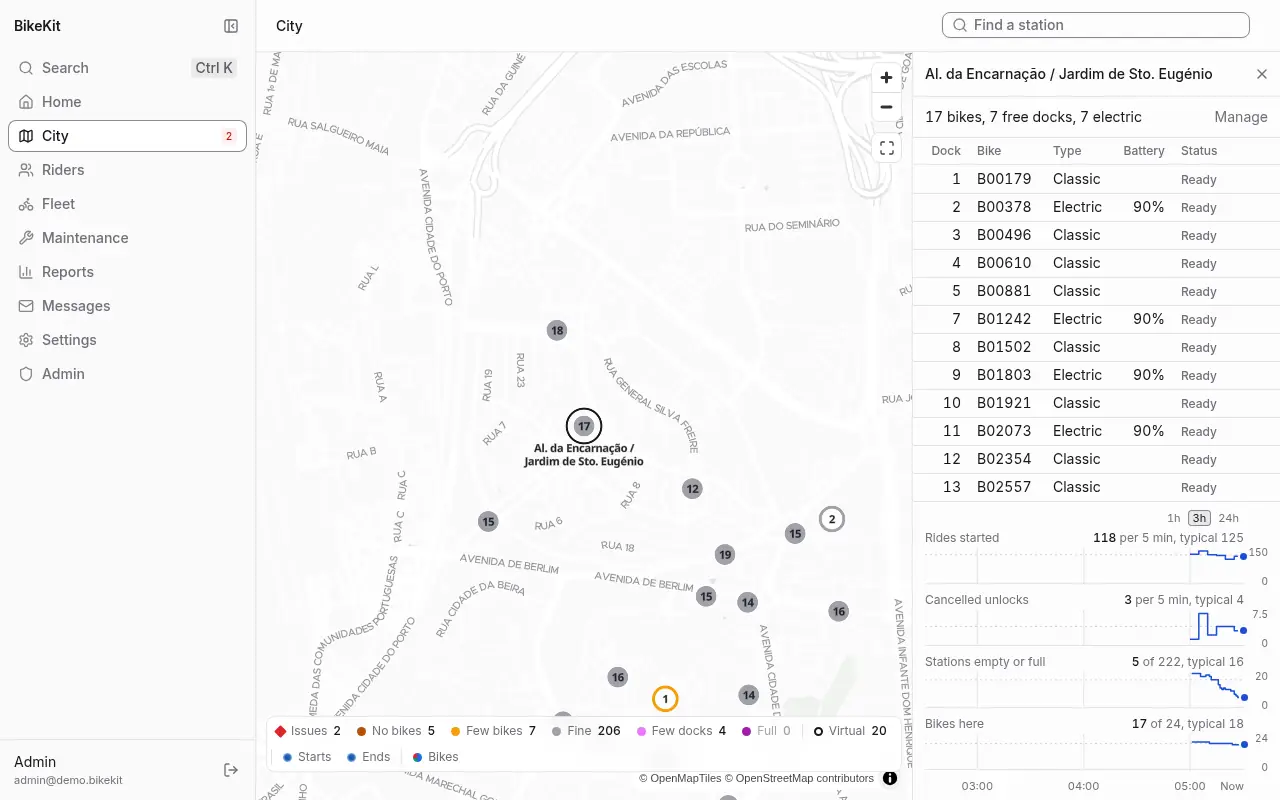
Everything you choose is kept in the address, so a view can be bookmarked or sent to a colleague.
Issues
An issue is something that needs a person to look at it. Most come from reconciliation: when a station reports something the server didn't expect, the station is believed, the records are corrected, and an issue says what happened. The rest come from riders.
| Issue | What happened |
|---|---|
| Bike reported lost | A rider said the bike was lost or stolen during their ride. The ride is held, billed up to the report |
| Return not registered | A rider docked a bike but their ride didn't end |
| Reported bike is back | A bike reported lost turned up in a dock |
| Bike left without a ride | A dock emptied with nobody unlocking it: possibly stolen or taken by staff without the backoffice |
| Bike turned up unexpectedly | A bike appeared at a dock the server didn't expect it at |
| Unknown bike in a dock | A dock read a bike tag the system doesn't know |
| Wrong dock count | A station reported a different number of docks than it has |
| Ride closed late | A station's report of a return was lost, and the ride was closed at the next heartbeat, at the time most favourable to the rider |
| Dock not responding | An unlock command got no answer for minutes |
| Parked outside the zone | A bike was locked at a virtual station while its last GPS position was outside the zone |
| Rider asks for help | A rider on a ride pressed the help button: flat tyre, accident, can't dock or other |
To handle an issue, open it from the rail, from your home page, or from the ride:
- Read what happened and look at the ride, bike or station it links to.
- For a lost bike, choose Waive (no charge) or Charge (bill the ride up to when it was reported), give a reason, and Settle. The bike stays missing until found.
- For anything else, fix what needs fixing (a work order, a call to the rider) and Settle it with a note.
- For a call for help, write to the rider in Answer to the rider and Send: they get it as a push notification and in the app. Mark handled when it's dealt with.
Handled issues, at the foot of the rail, lists those already settled.
Fleet overview
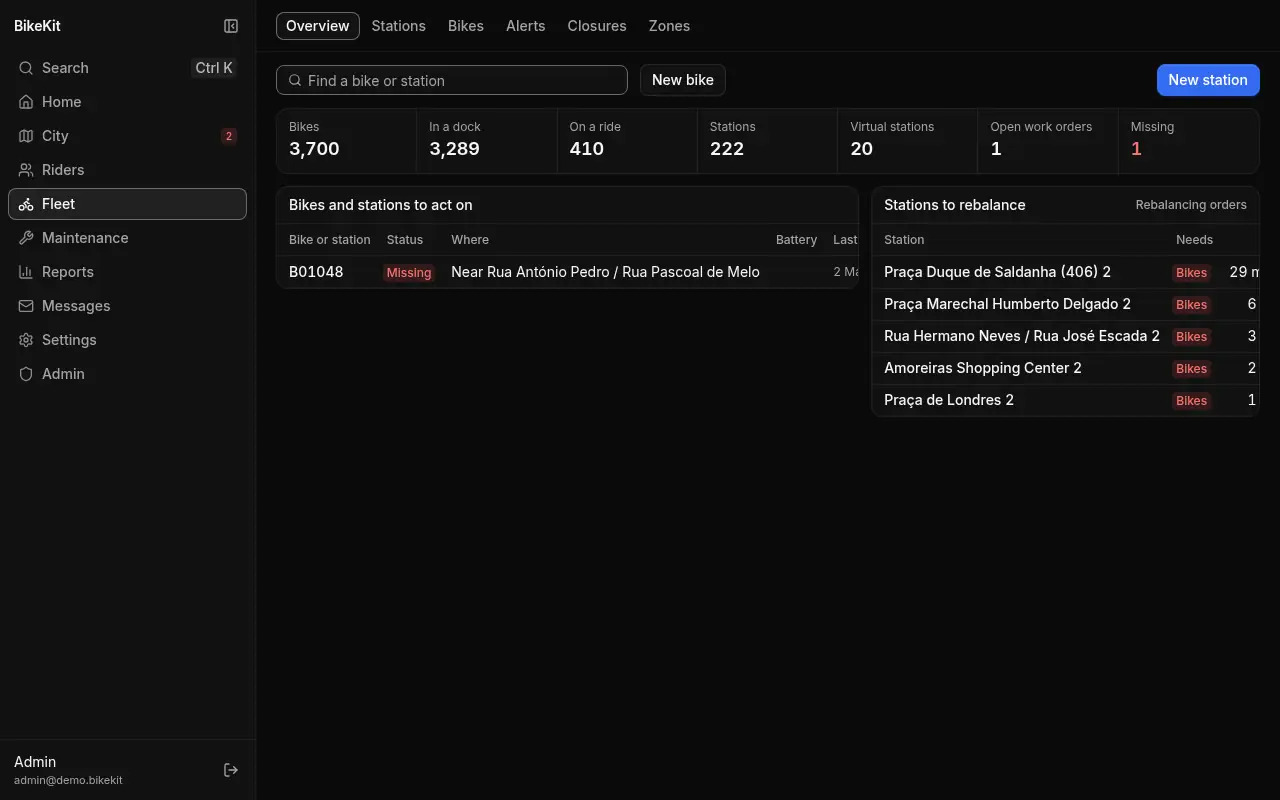
Fleet → Overview is a triage page: one row of figures (bikes, where they are, stations, virtual stations, open work orders), then the bikes and stations to act on (missing, not rideable, worn, in repair, closed or silent) and the stations to rebalance, with how long they have been empty or full and whether a rebalancing order is open. When nothing needs acting on, it says so.
Stations
Fleet → Stations lists every station with its bikes, free docks, status and state. Filter by status, stock, zone or equipment state, sort by name, fewest bikes, fewest free docks or longest silent, and click a station to open it.
A station's page shows its docks beside its facts: ready bikes, free docks, when it was last heard from, and Navigate links (Google Maps and Waze) for whoever drives there. Below are its stock over time, its work orders, its closures and the history of its states.
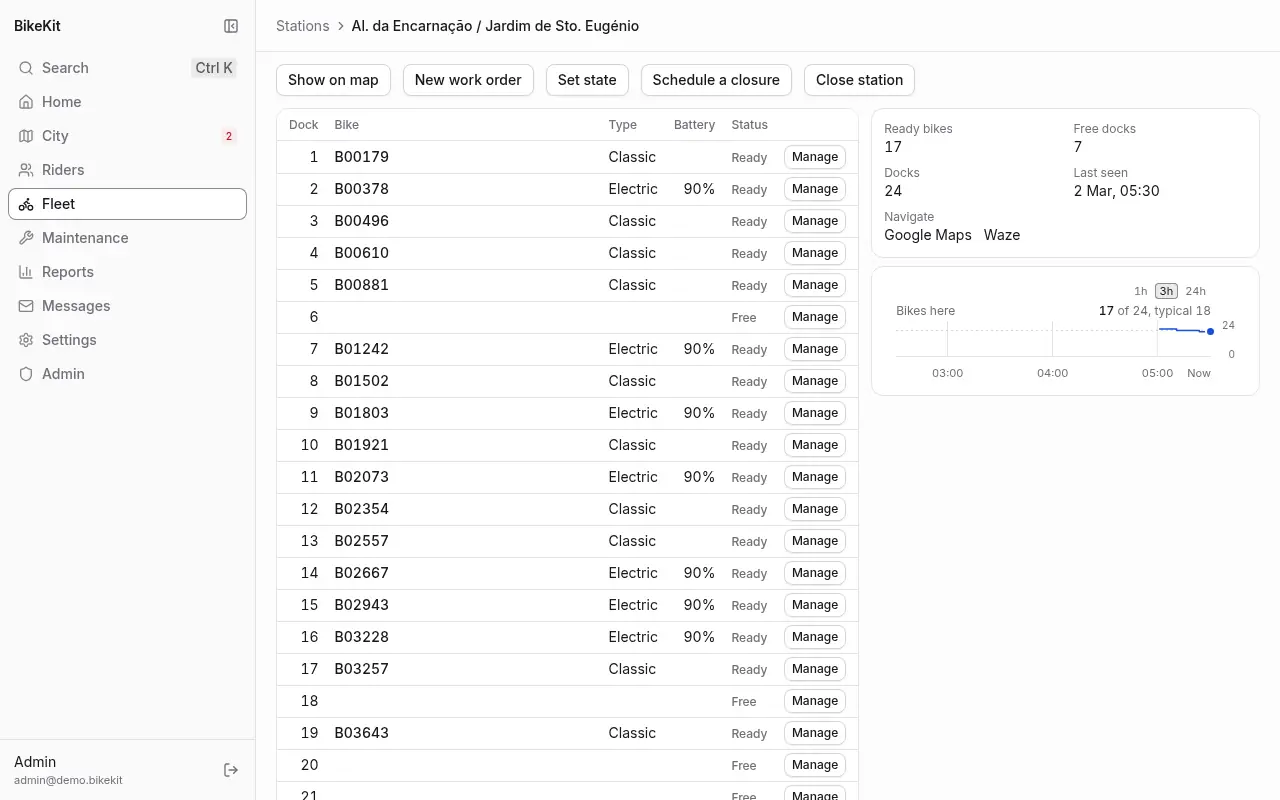
The actions at the top of a station's page:
- Show on map opens it on the City map.
- New work order opens an order for it (see Maintenance).
- Set state gives it an equipment state (see Equipment states).
- Schedule a closure closes it later or on certain hours (see Closures).
- Close station closes it now, with a reason, until someone presses Reopen station. Use this for a station that is out of action for a while; use a closure for anything planned.
A station's status is one of Commissioning (added, not yet reporting the right number of docks), Active, Closed or Decommissioned. Riders see only active stations that no closure holds.
Add a station
Admins.
- Fleet → Overview → New station.
- Choose Dock station (docks with their own locks) or Virtual station (a marked parking area where bikes lock themselves).
- Give its name and position (latitude and longitude), its number of docks, or for a virtual station its number of points (how many bikes it holds) and its zone radius (10 to 500 m).
- Give the Station URL (or Gateway URL for a virtual station): where the server sends unlock commands.
- Add station, then copy the device token it shows. It is shown once; the station sends it with every report.
The station is Commissioning until it reports, then Active. A virtual station's page has Change zone to change its radius and number of points; points can only be removed while empty.
For your station supplier. Each station's report carries the station's boot, so BikeKit can tell a late report sent before a restart from the station's present state and set it aside. Ask that the firmware also keep a boot count: a number kept across restarts and power cuts, one higher on every start, sent with each report and command reply (boot_count, plan.md §8.2). It is optional, but without it a station that restarts twice in quick succession can have its reports ignored until it next restarts. If the station's memory is wiped or its controller replaced, the server's reply tells it the count to continue from.
Docks
Each row of a station's dock table has Manage:
- Open dock releases the bike into your custody, for a technician standing at the station, as if they had taken it. Docking it anywhere ends the custody.
- Block closes that dock to riders now: no bike can be taken from it and it doesn't count as free. Unblock opens it again.
- Set state gives the dock an equipment state, such as Out of service.
A dock that reports a fault (a jammed lock, a broken reader) shows it, stops counting as a place to return a bike, and opens a work order by itself.
Bikes
Fleet → Bikes lists the fleet, the bikes that need someone first. Filter by where they are (In a dock, On a ride, With workers, Missing, Retired), by type (classic or electric) and by state, or search by label or tag.
A bike's page shows where it is now, its condition, battery, last position, its rides and its work orders. From there:
- Condition is Good, Worn (still rideable, flagged to riders) or Not rideable (no rider can take it). Technicians change it as they find and fix faults.
- Block keeps riders off it wherever it is docked, without taking it away.
- Set state gives it an equipment state, such as Awaiting repair.
- New work order opens a repair or inspection for it.
- QR sticker shows the bike's code. Print prints a sticker; Replace code makes the old sticker useless, for a damaged, copied or stolen one.
Add a bike
Admins.
- Fleet → Overview → New bike.
- Choose Classic or Electric.
- Give its Label, as painted on the frame, and its RFID tag, what the docks read to know it. Both must be new.
- Optionally give its E-lock URL, where the server sends lock commands. Without one, rides on it can't be paused.
- Add bike, then copy the device token it shows for the e-lock. It is shown once. The bike's name links to its page, where you print its QR sticker.
The bike joins the fleet when a station first reports it in a dock. To add a whole delivery, a script can call the API instead (POST /v1/admin/bikes).
- Maintenance shows each maintenance plan with how far the bike is towards its next service, and Mark serviced when it was serviced outside an order.
- Retire bike (admins) takes it out of service for good.
A bike is In a dock, On a ride, With a worker, Missing or Retired. A bike goes missing when it leaves a dock without an unlock, or when a rider reports it lost; it is found again the moment any station reports it.
Alerts
Fleet → Alerts lists the conditions the server watches for, checked every minute and cleared by themselves when the condition ends.
| Alert | Raised when | Default |
|---|---|---|
| Low battery | An electric bike's battery is below a level | 20% |
| GPS silent on a ride | A bike on a ride has sent no position for a while | 10 min |
| Outside the service area | A bike out of a dock was last seen well outside the stations' area | 1 km beyond |
| Too fast | A ride's positions imply a speed above a limit | 35 km/h |
| Station not reporting | A station hasn't been heard from | 90 s |
| Station empty or full | A station has had no bike, or no free dock, for a while. It also opens a rebalancing order | 30 min |
| Work order overdue | A bike or station has an order past its deadline | the SLA targets |
| Ride running long | A ride has been open a long time | 2 h |
| Bike not returned | A ride has been open much longer. The rider gets a push and an email | 6 h |
| Paused too long | A ride has been paused with the e-lock past the limit | 20 min |
| Rider asks for help | A rider's call for help is open | at once |
The thresholds are in Settings → Rules (see Prices and money).
Filter the list by kind, open a ride's alert to see the ride, and Acknowledge an alert to show the team someone is on it, one at a time or all those shown at once. Acknowledging doesn't clear it; fixing the cause does. Cleared shows the ones that have ended.
Closures
A closure stops riders unlocking bikes somewhere, now or on a schedule: the whole system, a zone, a station, a dock or a bike. Workers are never stopped, since a closure is often why someone goes there. Rides already under way carry on.
Fleet → Closures lists what is closed now and what is scheduled: what each closes, from when to when, its daily hours, why, and its state (Scheduled, Closed now, Outside its hours). All, ended and lifted too shows the past ones.
Schedule a closure
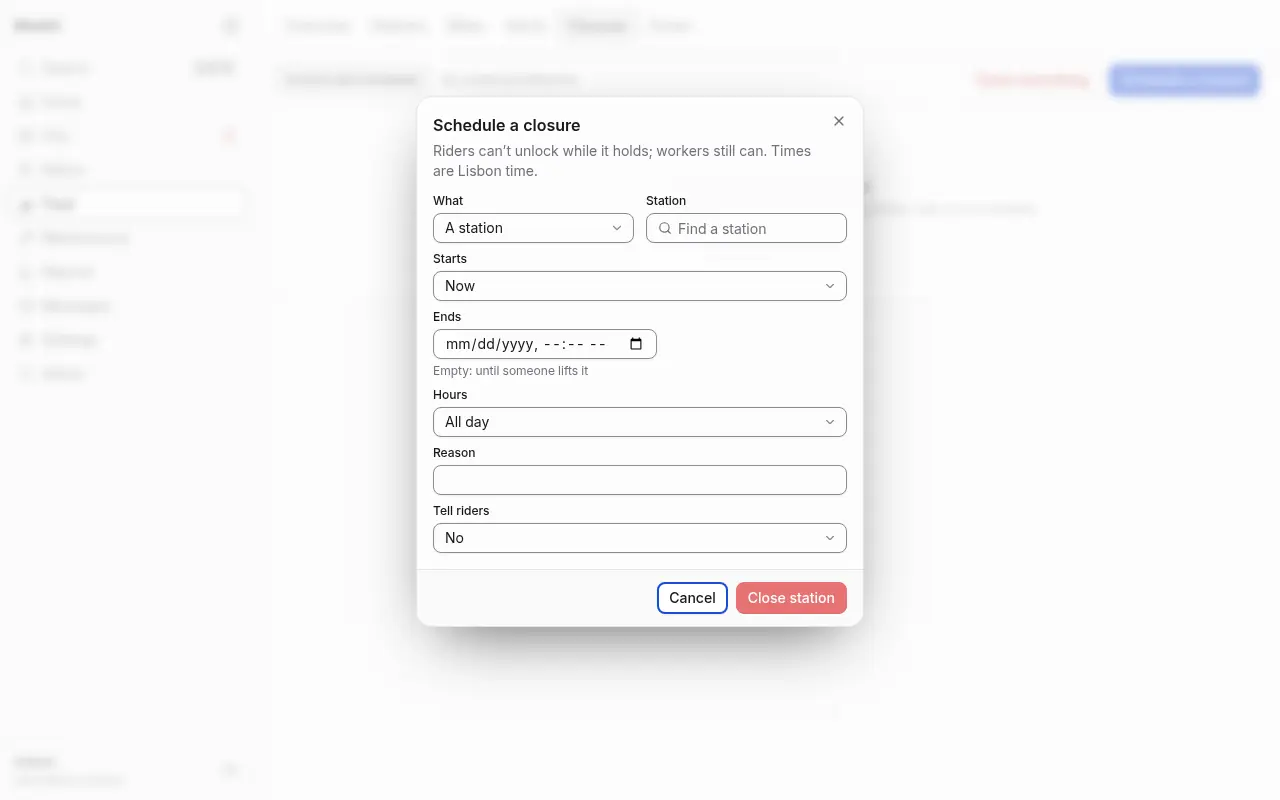
- Fleet → Closures → Schedule a closure.
- What: a station (find it by name), a zone, or the whole system.
- Starts: Now or From a date.
- Ends: a date and time, or leave it empty to close until someone lifts it.
- Hours: All day, or Only some hours each day, such as 02:00 to 06:00 every night. Hours may cross midnight.
- Reason: for your colleagues and the activity log.
- Tell riders: Yes, send a message to write a disruption notice, in Portuguese and optionally English. Riders of that station or zone (or everyone, for the whole system) see it in the app until the closure ends.
- The button says what will happen: Close station for a closure starting now, Schedule closure for a later one.
A closed station leaves the riders' map at the moment the closure starts, and comes back when it ends.
Lift ends a closure now, and withdraws its message. Cancel removes one that hasn't started.
Docks and bikes are closed from their own pages, with Block. A zone is closed from its page or from here.
Close everything
Close everything, beside Schedule a closure, is for an emergency: a storm, a system fault. It asks only why and whether to tell riders, and closes every station from now until you lift it. Rides already under way carry on.
Zones
A zone is a named area of the city drawn on the map: a parish, the riverside, a festival's streets. Stations inside it belong to it, including any added later. Zones are used to close an area at once, to filter the station list and the City map, to fill a team's area, and to choose a company's stations.
To draw a zone:
- Fleet → Zones → New zone.
- Click the map to place its corners, at least three. The stations inside light up as you go. Undo corner takes the last one back; Clear starts again.
- Give it a name and save.
A zone's page shows its stations and closures, links to it on the City map and in the station list, and has Redraw zone, Delete and Schedule a closure. A zone with a closure still to come can't be deleted. Zones may overlap.
Equipment states
The core states of bikes, docks and stations are fixed: a bike is good, worn or not rideable; a dock is in or out of service; a station is active or closed. Equipment states let your team add its own, finer states on top, such as Awaiting repair, Low battery, Under works or Kept free, each with a colour that shows wherever the equipment does.
Settings → Equipment states lists them for bikes, docks and stations, with how many pieces of equipment carry each. Managers add and change them; the control room reads them and sets them.
To add a state (managers): Add state, then choose:
- what it's for (bikes, docks or stations), its name and colour;
- Maps to: the core state it implies, such as not rideable for a bike or closed for a station;
- Riders may rent from it and Riders may return to it, so a state like Kept free can stop rentals while still taking returns.
A state only ever takes away: it can make a bike unrideable or a dock unavailable, never the reverse.
To set a state by hand (the control room): Set state on a bike's or station's page, or Manage → Set state on a dock. Take it off the same way. A state set by hand stays until a person changes it.
State rules set states automatically, and can open a work order at the same time:
| Rule | For | Holds while |
|---|---|---|
| Battery below | bikes | an electric bike's battery is below a level |
| Not heard for | bikes, stations | a bike out of a dock, or a station, has been silent for some minutes |
| Faults reported | bikes, docks, stations | at least some fault orders were opened on it within some days |
Rules are checked every minute, in the order listed; the first that holds wins, and a state a rule set comes off when the rule stops holding. Add rule, then use Up and Down to order them.
Each piece of equipment's page has its State history: every change, by whom or by which rule, and why.